
FlyghtEdge · plug and play for IoT
Plug in. Declare. Done.
FlyghtEdge turns a small board into a smart device: a few lines of code give it its own dashboard, a setup page and, when you want it, control from anywhere.
Arduino IDE · PlatformIO · arduino-cli
The library
Write the code. See the output.
The code is the library’s own quick start. Beside it is the real screen the board serves at that step.
The device
A device, a light, a relay, flows.
Controls
Switch, slider, choice, button.
Readings
Gauge, chart and value.
Modules
A relay is a switch by itself.
MQTT
Your broker and Home Assistant.
Run
Key, cloud, begin: live.
What you get
Everything runs on the board.
Flows, a dashboard you arrange, pins that bind themselves and tasks of their own. These are the library’s own screens.
Draw logic, do not code it
Triggers, conditions and actions as blocks and wires, run by the board itself. 23 block types (Pro).
Drag and drop your dashboard
Move and resize the cards on the board’s own page, with the mouse or the keyboard.
Pins without glue code
Relays, sensors and lights bind to their pins and show up as widgets. Change a pin later, no re-flash.
Flows on their own task
Give a flow its own real-time task so a long wait never holds up the rest (Enterprise).
Flexible by design
Eight widget types, MQTT and Home Assistant, webhooks, a local HTTP and WebSocket API, and blocks of your own.
Plug and play
Install in a minute.
Add the library, choose the partition scheme, press upload. Watch it once, then do it in your own IDE.
Add the library
Sketch › Include Library › Add .ZIP Library… and pick the FlyghtEdge zip. PlatformIO and arduino-cli work too.
Choose the partition scheme
Tools › Partition Scheme › No FS 4MB (2MB APP x2): a full build needs the room.
Upload
Press upload. The board starts its own Wi-Fi and is ready for setup.
Setup in your hand
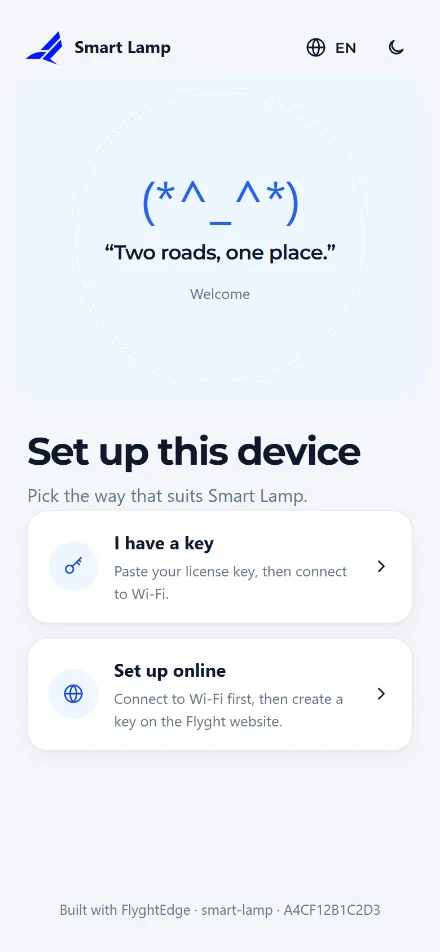
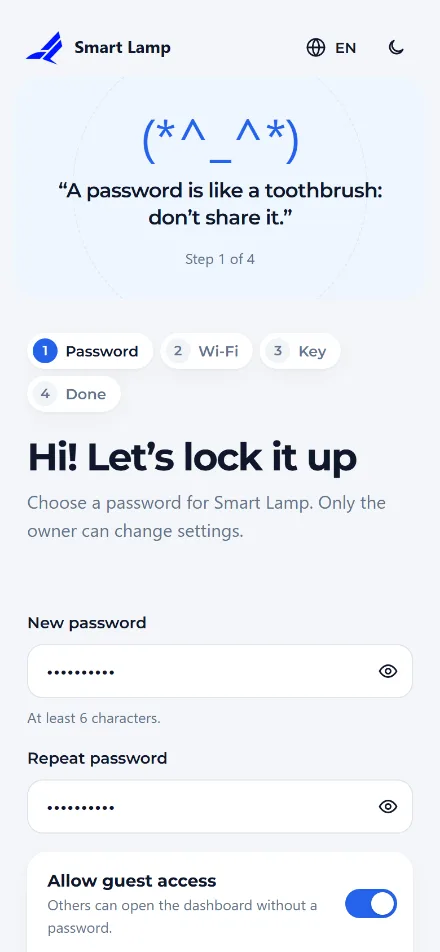
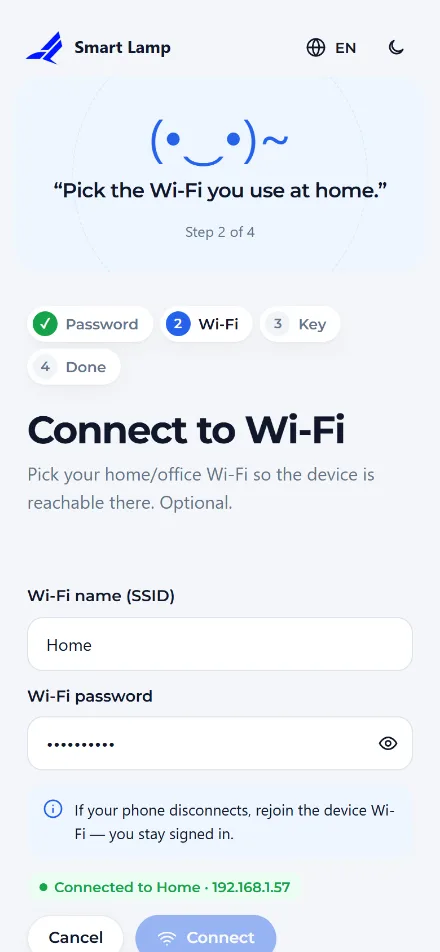
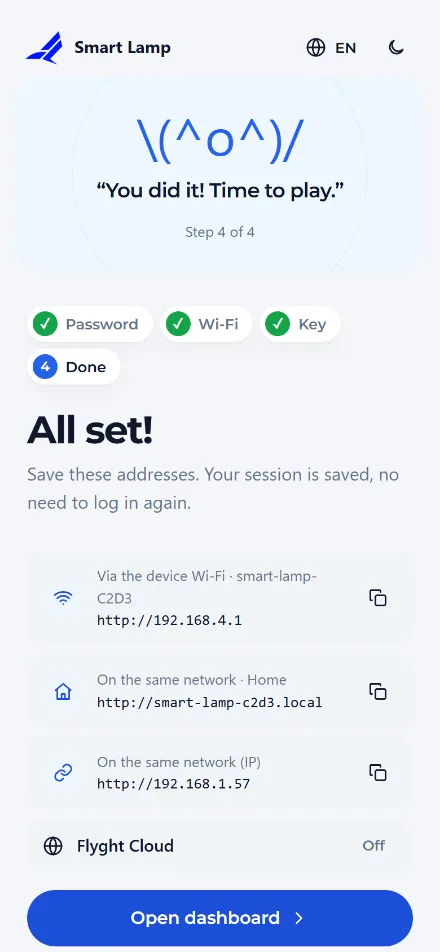
The board brings its own setup.
No app to install and no router to configure. Join the board’s Wi-Fi and a setup page opens by itself.
Join its Wi-Fi
A network named after the device appears. Join it from your phone and the setup page opens by itself.
Set a password
The first thing the board asks for is an admin password. There is none built in.
Pick your Wi-Fi
Choose your home or office network so the board is reachable there too.
All set
You get the addresses: the setup network, the .local name and the IP. The dashboard is one tap away.
Free to start
Get your key.
A free key unlocks the library for your projects, and the same key connects a device to Flyght Cloud.
Sign in
With Google or an email link. There are no passwords.
Create your key
Give it a name and it is ready in a second. Free keys are free.
Copy it
It is shown once, so keep it somewhere safe.
Put it in your sketch
One line, and the board is unlocked.
5 · Claim
Claim it into your account.
Switch on Flyght Cloud and open the activation link the device shows. That is the whole setup.
The device registers
With the same license key it tells the server it exists, and is told where to connect.
Open the activation link
Until it is claimed, the device’s settings show a link. Open it while you are signed in.
It becomes yours
The device is claimed to your account. Nobody else can claim the same board.
It lands in its folder
It appears under Devices, in the folder the key points to (or unsorted), and shows as online.
Flyght Cloud needs a library release that includes the cloud module.
Flyght Cloud
Watch and control it from anywhere.
This is a working preview: press the switch, or just scroll.
You press it
A switch, a slider or a button in the dashboard, from your phone or your desk.
It is checked
The command must fit the widget the device described, and you must be allowed to send it.
It is sent
To the device, never straight from your browser. A command is not kept for later: an old order never replays.
The device answers
It reports its new state, the dashboard follows, and the command stays in the audit log.
Pump
Fan
40 %
Temperature
24.5 °C
The command
- Pressed
- Checked
- Sent
- Confirmed
Use case
Komatsu GPS tracking
A web app for Komatsu’s forklift GPS gateways. Shown here: two forklifts on 29 and 30 September.
The route of a day
The track on satellite imagery: stops, direction and gaps, numbered in order.
The day in numbers
2.37 km, 25 min moving, 5 stops: distance, time and speed for the range you pick.
Every fix, timestamped
Each position with its time, speed, heading, satellites and accuracy.
Gaps with a cause
When the route was not recorded, the app says why: a weak GPS signal under a roof.
Screens of the live Komatsu forklift GPS web app, for 29–30 September 2026.


Any application
Universal. Adaptive.
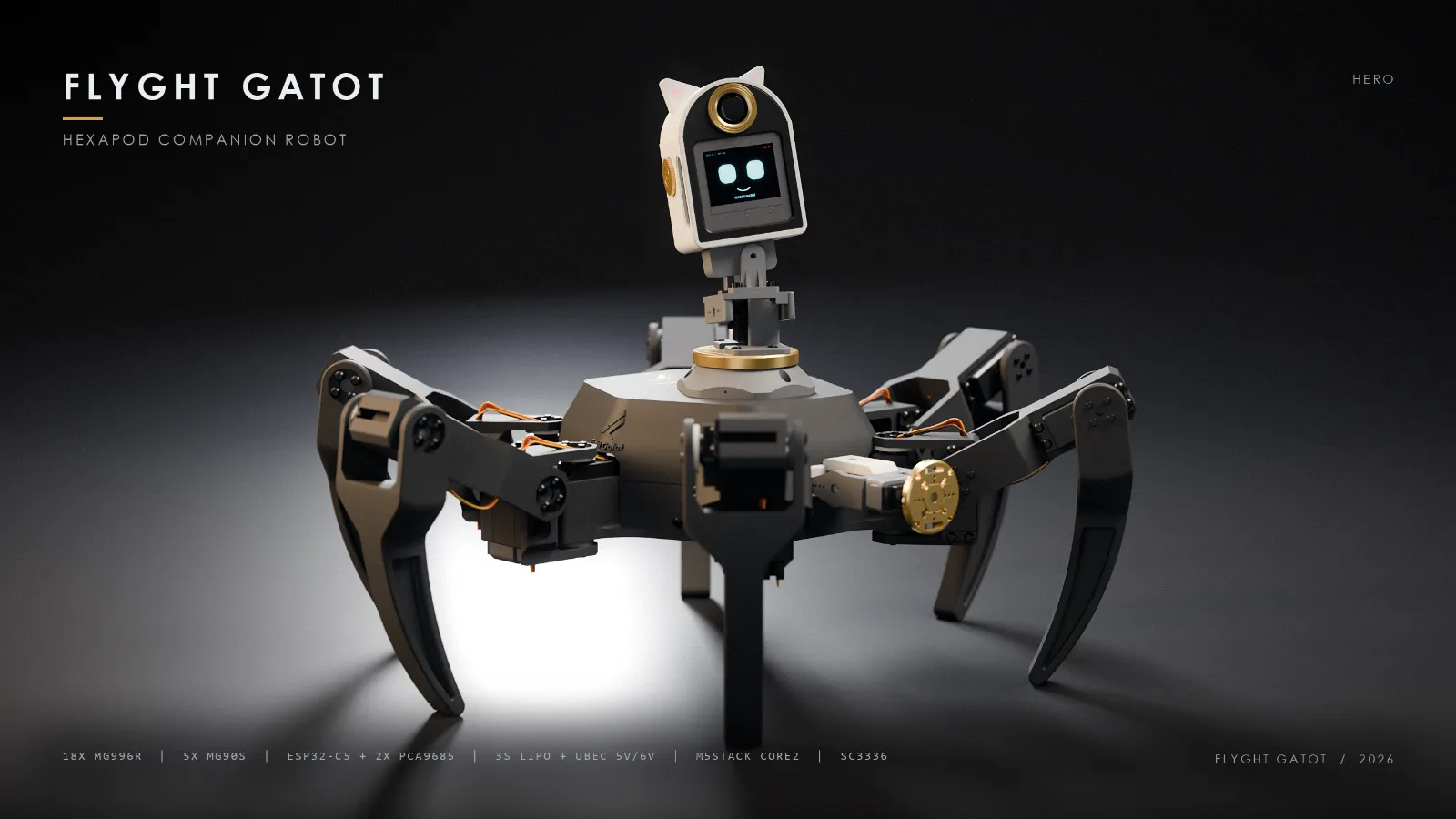
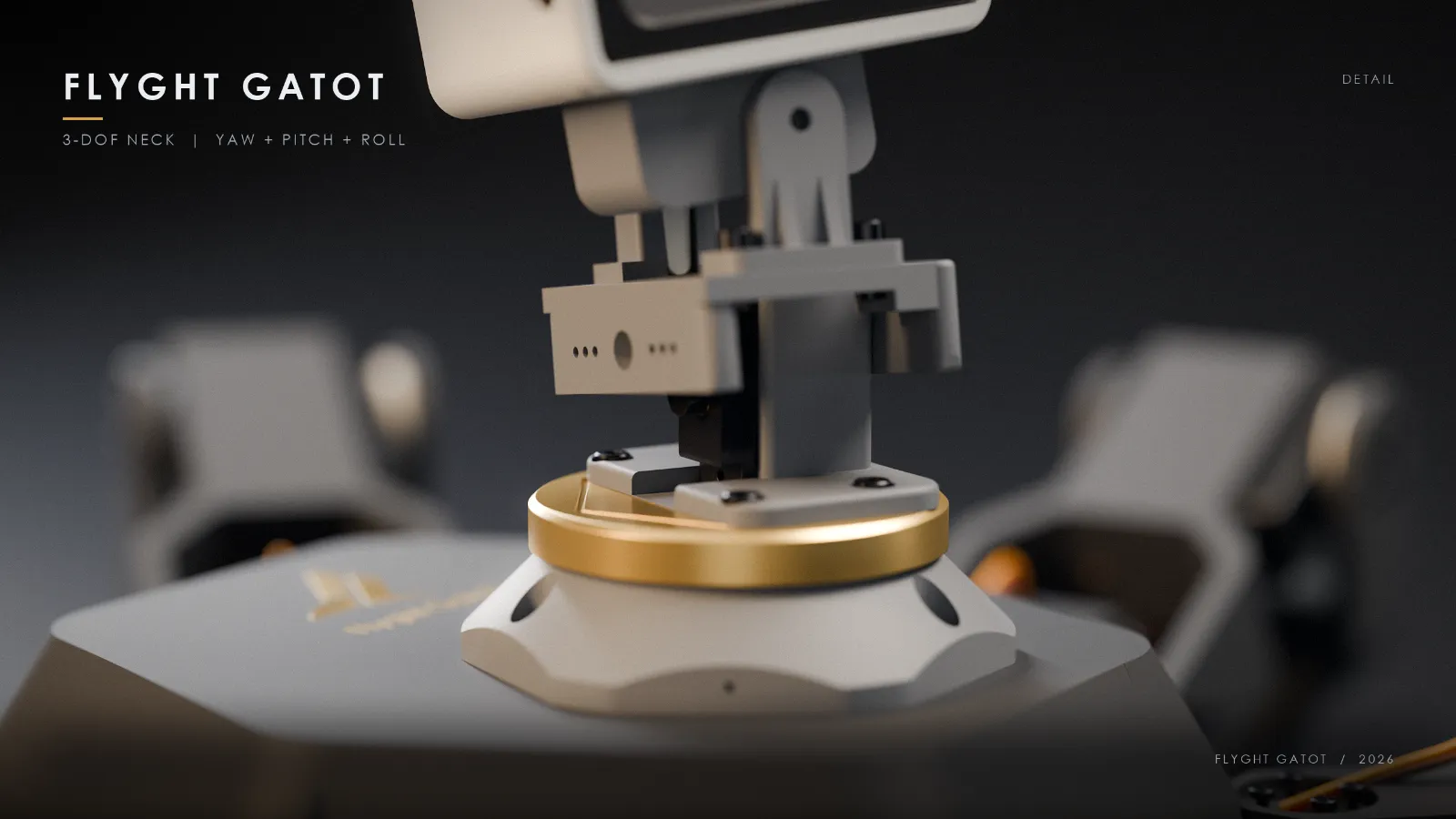
One library fits any machine you can imagine. Flyght Gatot, a six-legged spider robot with a face, is one of them.
A spider robot
Six legs and a head that shows a face and sees through a camera: one small board runs all of it.
Any size
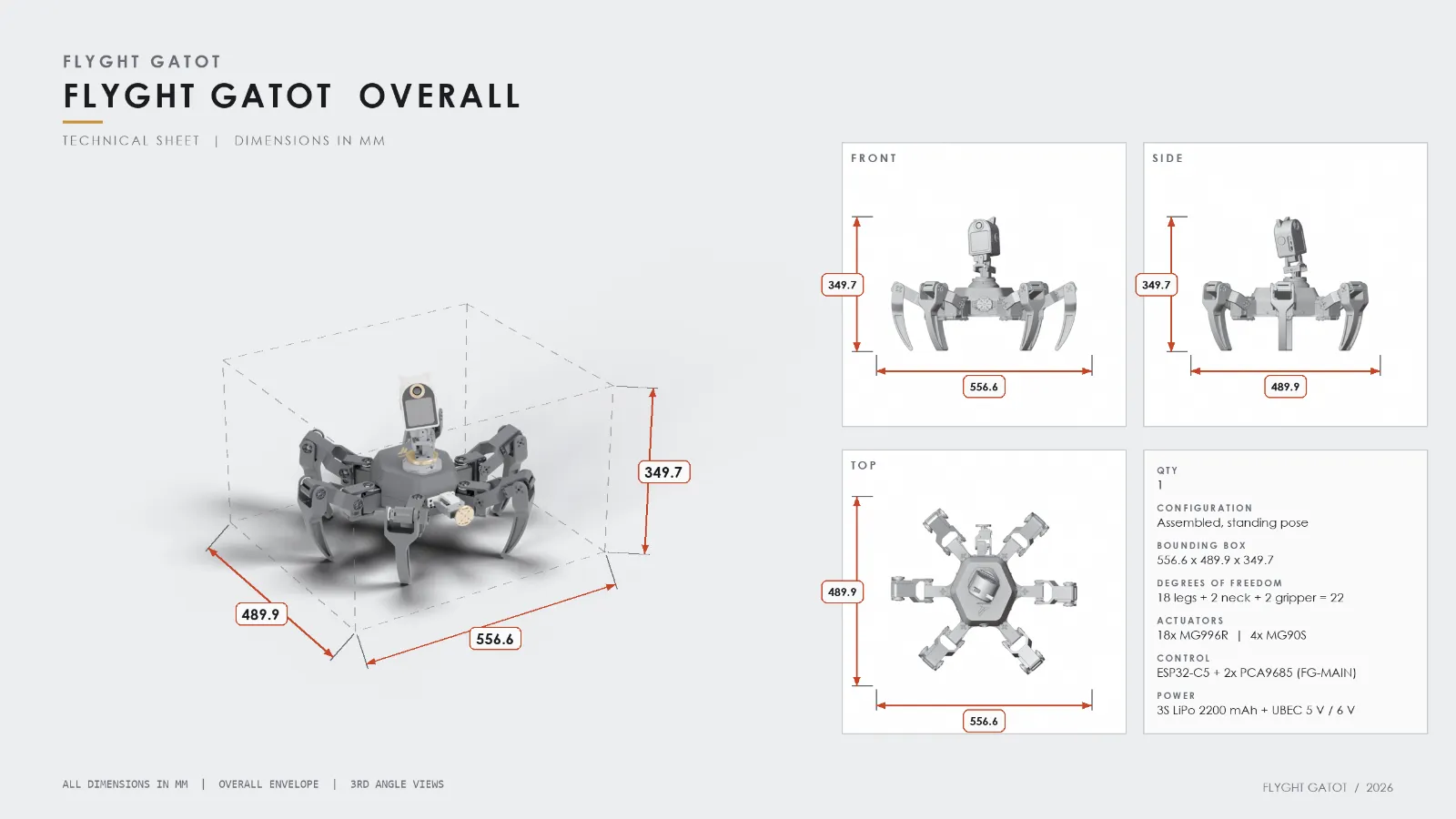
556.6 by 489.9 by 349.7 mm and 22 degrees of freedom: 18 in the legs, 2 in the neck and 2 in the gripper.
Any part
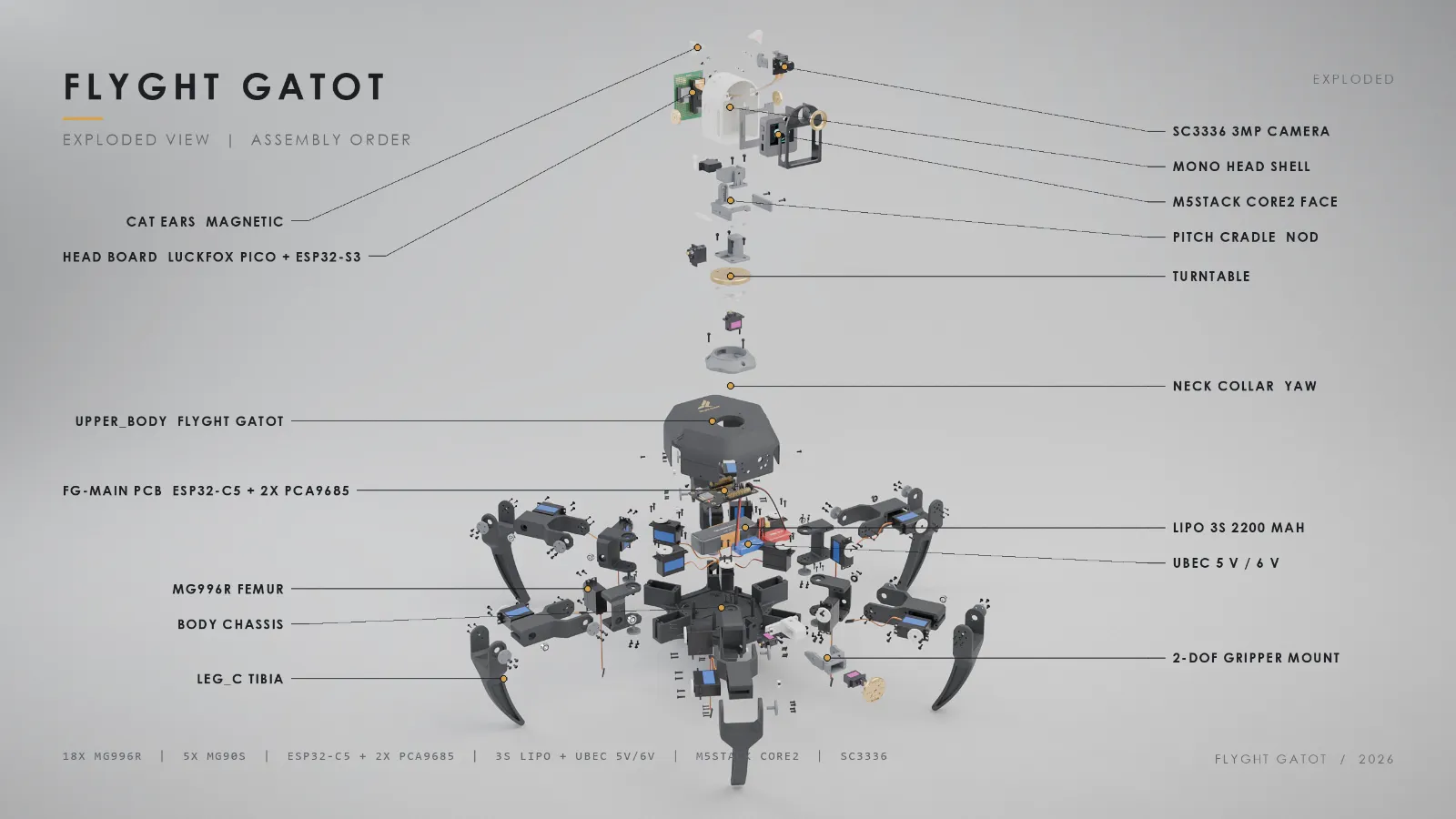
Servos, drivers, battery, display and camera: the library talks to whatever you connect.
Any movement
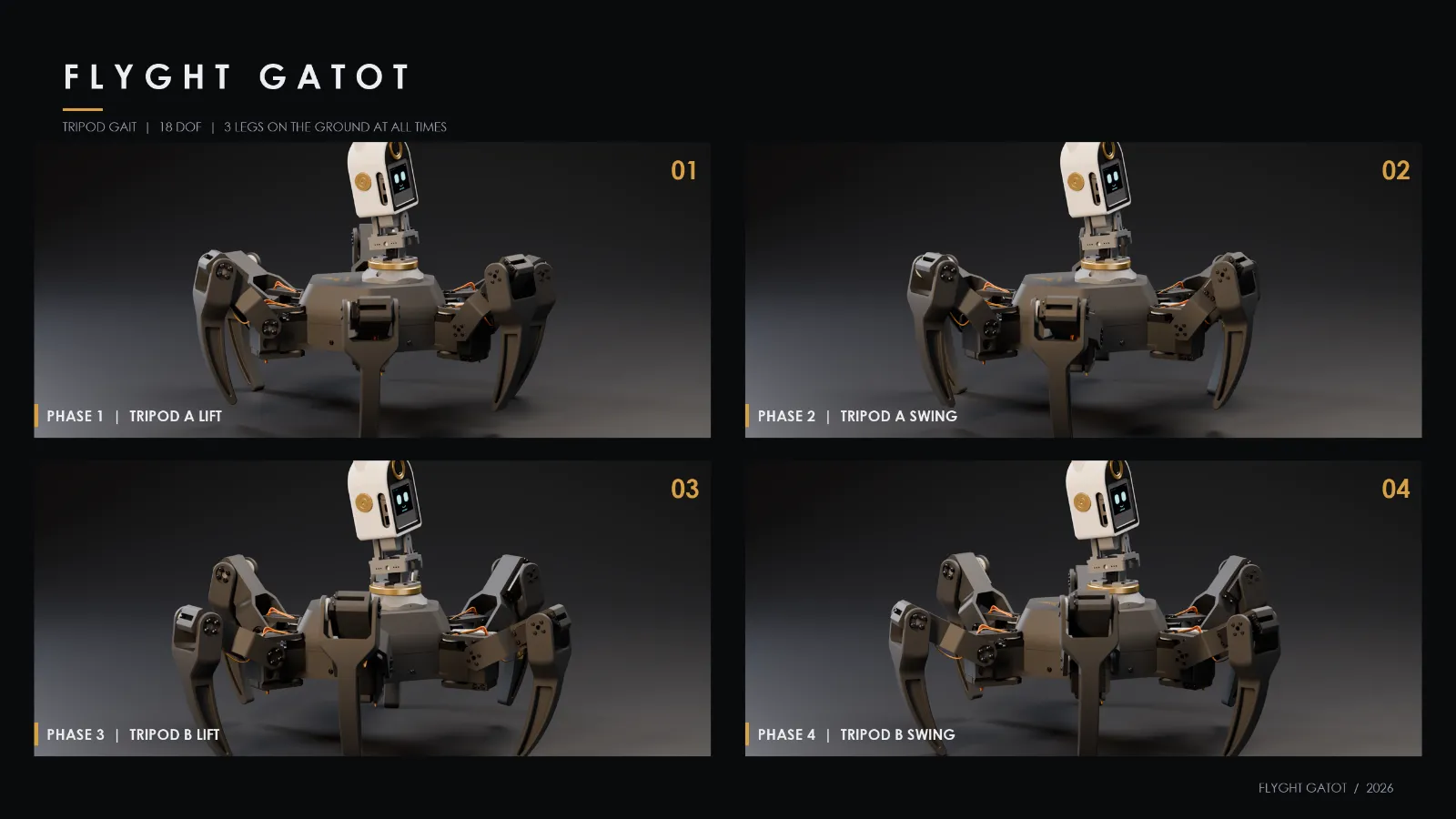
A tripod gait carries it across the floor: three legs are always down.
Any sense
A neck with three axes turns the head towards what it should look at.
Ready
Ready when your board is.
Create a free key, add the library, upload. The documentation takes you from install to a controlled device, end to end.
Made by Ninno
Khusnul KhuluqSoftware engineer · Industrial IoT, AI and roboticsFlyghtEdge and Flyght Cloud are built by Ninno. For a collaboration, a commercial license, or to support the work, get in touch.
ninno.obayan.id ↗